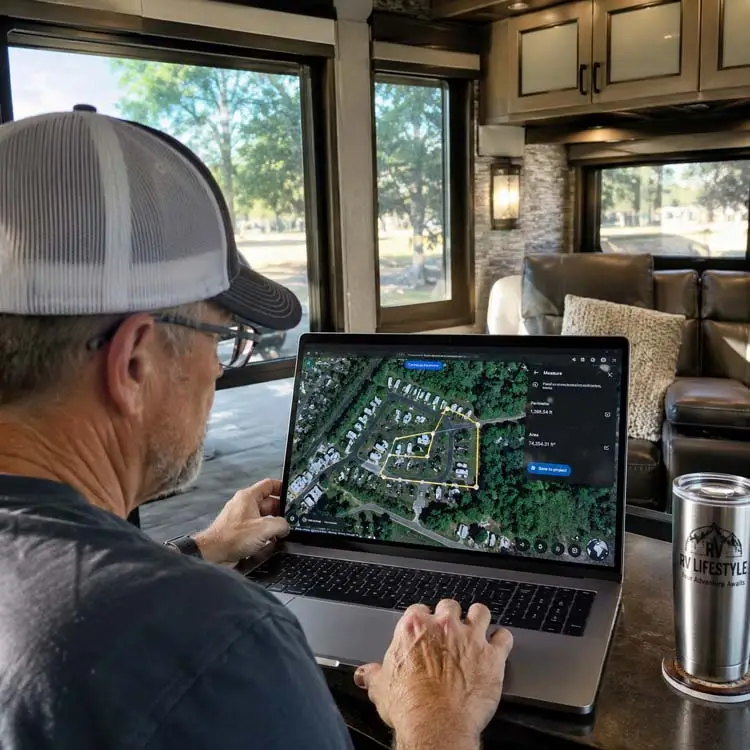
One of the biggest challenges RV travelers face is determining whether a campground, fuel stop, parking area, or scenic overlook can accommodate their rig. After all, a location that looks spacious on a map may not be practical for a 45-foot fifth wheel or large motorhome.
Fortunately, Google Earth provides powerful measurement tools that help remove much of the guesswork. Whether you’re planning a cross-country RV adventure, checking campground layouts, estimating the size of a parking lot, or verifying the distance between fuel stops, Google Earth can help you make more informed travel decisions.
While measurements aren’t always perfectly accurate due to terrain and elevation changes, they are usually close enough to help RVers avoid surprises and plan safer, more enjoyable trips.

Why RV Travelers Should Use Google Earth Measurement Tools
Before booking a campsite or heading down an unfamiliar road, Google Earth allows you to:
- Measure campground road widths
- Estimate campsite lengths
- Check parking lot dimensions
- Evaluate turnaround space
- Measure distances between fuel stations
- Estimate walking distances to attractions
- Analyze potential boondocking locations
- Verify property boundaries and acreage
For those of us traveling with larger RVs, these tools can save considerable stress and prevent costly mistakes.
How to Measure Distances in Google Earth (Web Version)
The current Google Earth web version includes an easy-to-use measuring tool.
Step 1: Open Google Earth
Launch Google Earth in your web browser and search for your destination.
Step 2: Select the Measure Tool
On the left side of the screen, click the Measure icon.
Google Earth automatically switches to a top-down view for improved accuracy.
Step 3: Place Measurement Points
Click your starting point.
Then click additional points along your route or area of interest.
Examples include:
- Measuring campground entrance roads
- Checking the length of an RV site
- Estimating distances between landmarks
- Determining walking routes
Step 4: Complete the Measurement
Double-click your final point or select Done.
Google Earth will display the total distance.
Helpful Tip
For the most accurate results:
- Zoom in closely
- Use satellite imagery
- Measure from directly overhead
- Avoid measuring while viewing buildings at an angle
How to Measure Areas in Google Earth
Area measurements can be especially useful when evaluating:
- Campgrounds
- Fairgrounds
- RV storage facilities
- Boondocking locations
- Private property
Create a Closed Shape
Using the Measure tool:
- Click around the perimeter of the area.
- Return to your starting point.
- Close the shape.
Google Earth will automatically calculate:
- Total area
- Perimeter length
This feature is particularly useful when estimating whether a location has enough room for large RVs, trailers, or toy haulers.
Editing Measurements
Need to make adjustments?
After creating a measurement:
- Click and drag any point to reposition it.
- Add additional points for improved accuracy.
- Start a new measurement at any time.
This flexibility makes it easy to fine-tune campsite or route evaluations.
Changing Measurement Units
Google Earth allows measurements in several formats, including:
- Feet
- Yards
- Miles
- Meters
- Kilometers
- Acres
- Hectares
To change units:
- Click the displayed measurement.
- Select the unit dropdown menu.
- Choose your preferred measurement system.
Most RV travelers prefer feet and miles when evaluating campsites and road access.
Measuring Elevation in Google Earth
Elevation data can be valuable when planning RV travel through mountainous regions.
To view elevation:
- Move your cursor over a location.
- Look at the lower-right corner of the screen.
- Google Earth displays the elevation above sea level.
This can help determine:
- Mountain pass elevations
- Steep campground locations
- Potential weather concerns
- Terrain changes along your route
Keep in mind that the web version displays point elevation only and does not calculate elevation differences between two points.
Using Google Earth Pro for Advanced Measurements
For more detailed analysis, many RV travelers still prefer Google Earth Pro, which remains available as a free desktop application.
Google Earth Pro offers additional measurement options including:
Polygon Measurements
Calculate:
- Area
- Perimeter
- Property size
Circle Measurements
Determine:
- Radius
- Diameter
- Circumference
3D Path Measurements
Measure distances involving terrain and elevation changes.
3D Building Measurements
Estimate:
- Height
- Width
- Footprint area
These advanced tools are especially useful when evaluating large campgrounds, event venues, storage lots, or commercial properties.
Saving Measurements in Google Earth Pro
One of the best features of Google Earth Pro is the ability to save your work.
To Save a Measurement
- Open Google Earth Pro.
- Select Tools → Ruler.
- Create your measurement.
- Click Save.
- Name the measurement.
- Click OK.
The saved measurement appears in the Places panel for future reference.
This is particularly useful when planning long RV routes or comparing multiple campground options.
View Elevation Profiles Along a Route
Google Earth Pro also allows you to analyze elevation changes along a path.
To Display an Elevation Profile
- Create or open a path.
- Right-click the path.
- Select Show Elevation Profile.
The resulting chart displays:
- Distance traveled
- Elevation gain
- Elevation loss
- Steepness of grades
This information can be extremely valuable when towing a large fifth wheel, travel trailer, or toy hauler through mountainous terrain.
Practical Ways RV Travelers Use Google Earth Measurements
Over the years, I’ve found Google Earth to be one of the most valuable trip-planning tools available.
Before traveling, I routinely use it to:
- Verify campsite length
- Check fuel station access
- Evaluate campground road widths
- Measure parking areas for sightseeing stops
- Identify potential overnight parking locations
- Review route clearances and access roads
- Estimate distances between services
The few minutes spent measuring beforehand often eliminate hours of frustration after arriving.

Final Thoughts
Google Earth is much more than a satellite map. Its measurement tools can help RV travelers confidently plan routes, evaluate campgrounds, verify parking areas, and better understand terrain before ever turning the ignition key.
Whether you’re towing a large fifth wheel, driving a motorhome, or exploring in a travel trailer, learning how to measure distances and areas in Google Earth can make your travel planning easier, safer, and more enjoyable.
Before your next adventure, spend a few minutes exploring your destination in Google Earth. You may discover valuable information that helps turn a potential headache into a smooth and memorable journey.
YOU MAY ALSO LIKE:




Leave a Reply